My Schedule
Agents can view their schedules and make schedule change request.
What do you want to do?
Tasks in this Topic Include:
Related Tasks:
- My Agent Homepage
- My Schedule Changes
- Schedules for Bidding
- My Bids
- Schedule Swap Requests
- My Alerts
- Change Password
View My Schedule (Single Day)
To view a single day of your schedule:
- Select My Schedule from the left navigation men.
- The Interactive Schedule Calendar displays the interactive calendar of the current month.
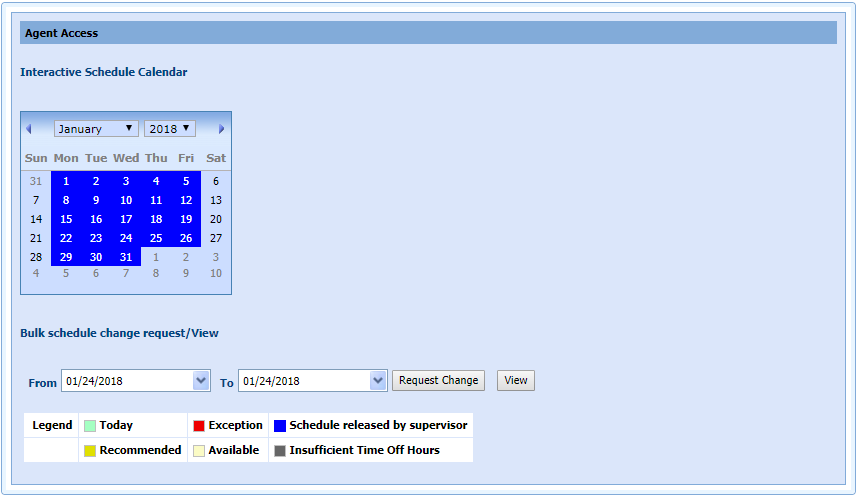
- Blue color indicates the days on which the agent has a schedule.
- Red color indicates the days on which the agent has Exceptions. These could be Regular, Mid-day plus (+), or Mid-day minus (-) exceptions.
- Darker yellow color indicates days recommended for exception requests.
- Lighter yellow indicates days that are available for scheduling.
- White color indicates dates the agent is not scheduled.
- Grey color indicates dates where there are insufficient hours in an Exception Pool.
- The Bulk schedule change request/View allows for the submission and viewing of change requests that span multiple days.
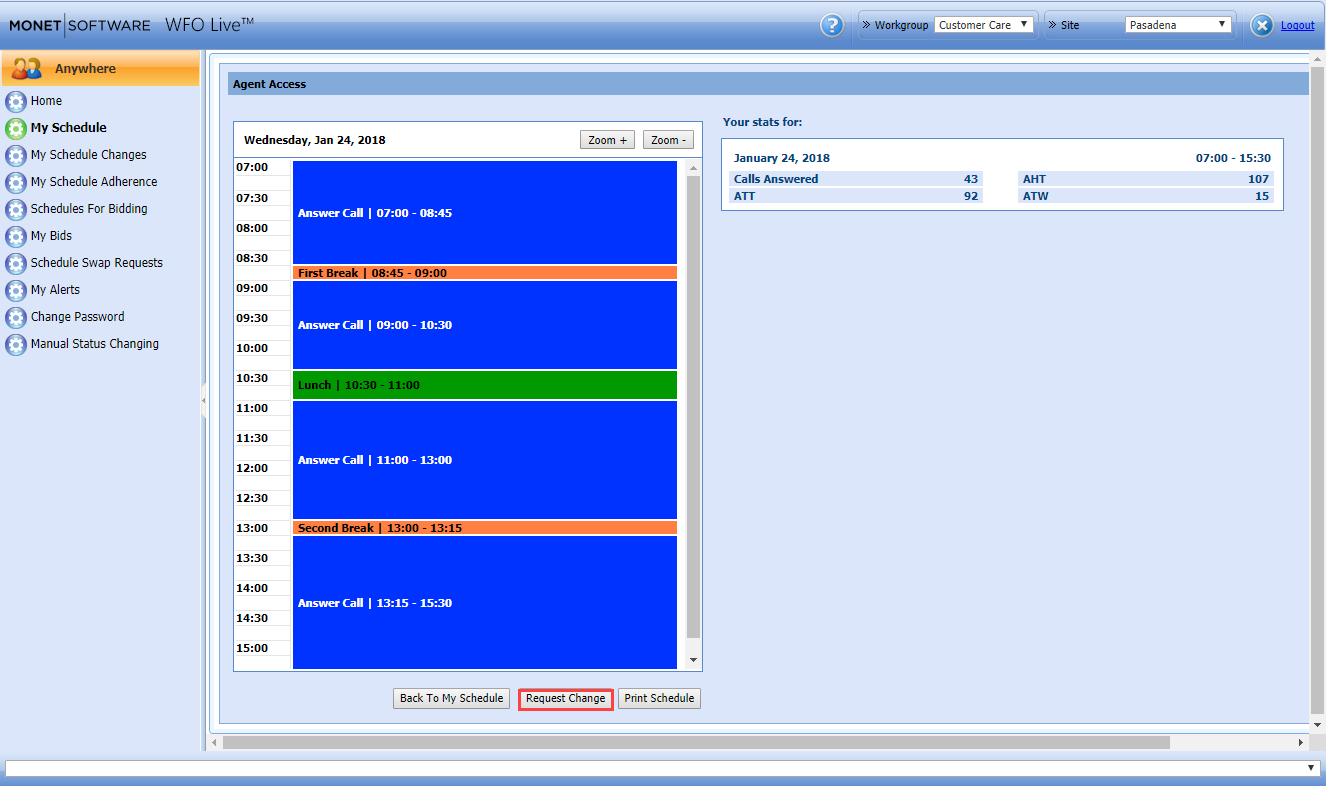
- Double click a day to open the individual day window.
View My Schedule (Multiple Days)
The Bulk schedule change request/View allows for the submission and viewing of change requests that span multiple days. To view multiple days of your schedule:
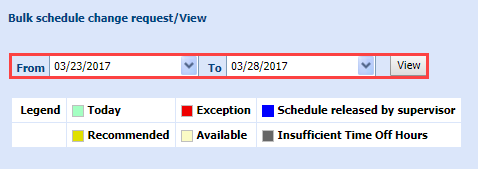
- Select the From date.
- Select the To date.
- Select View.
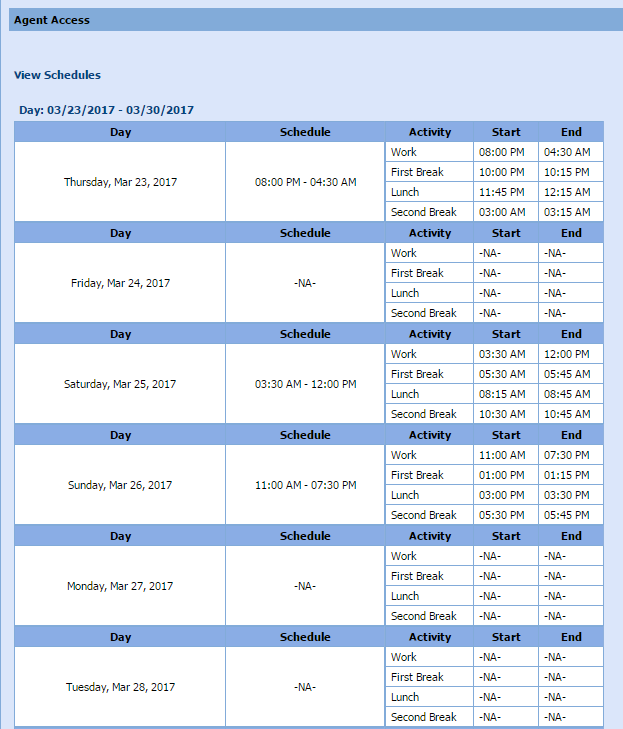
- The multiple days are displayed.